Apple device frames
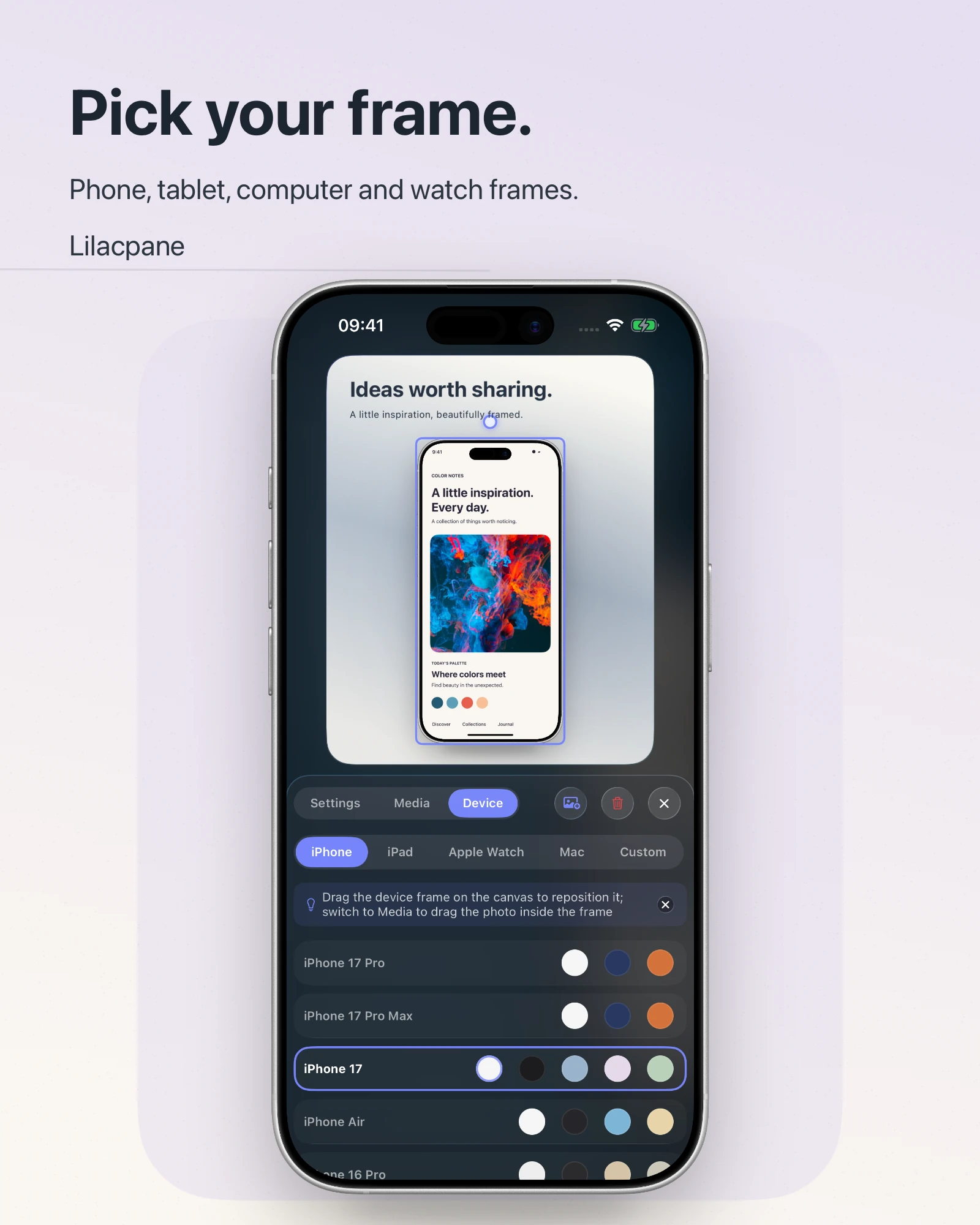
Browse iPhone, iPad, Mac, and Apple Watch frame categories and choose the finish that fits the asset. Availability follows the current app version.
Combine real screenshots, headlines, backgrounds and device frames for product launches, websites and social posts. Add device framing to recordings and create a consistent presentation for your product.
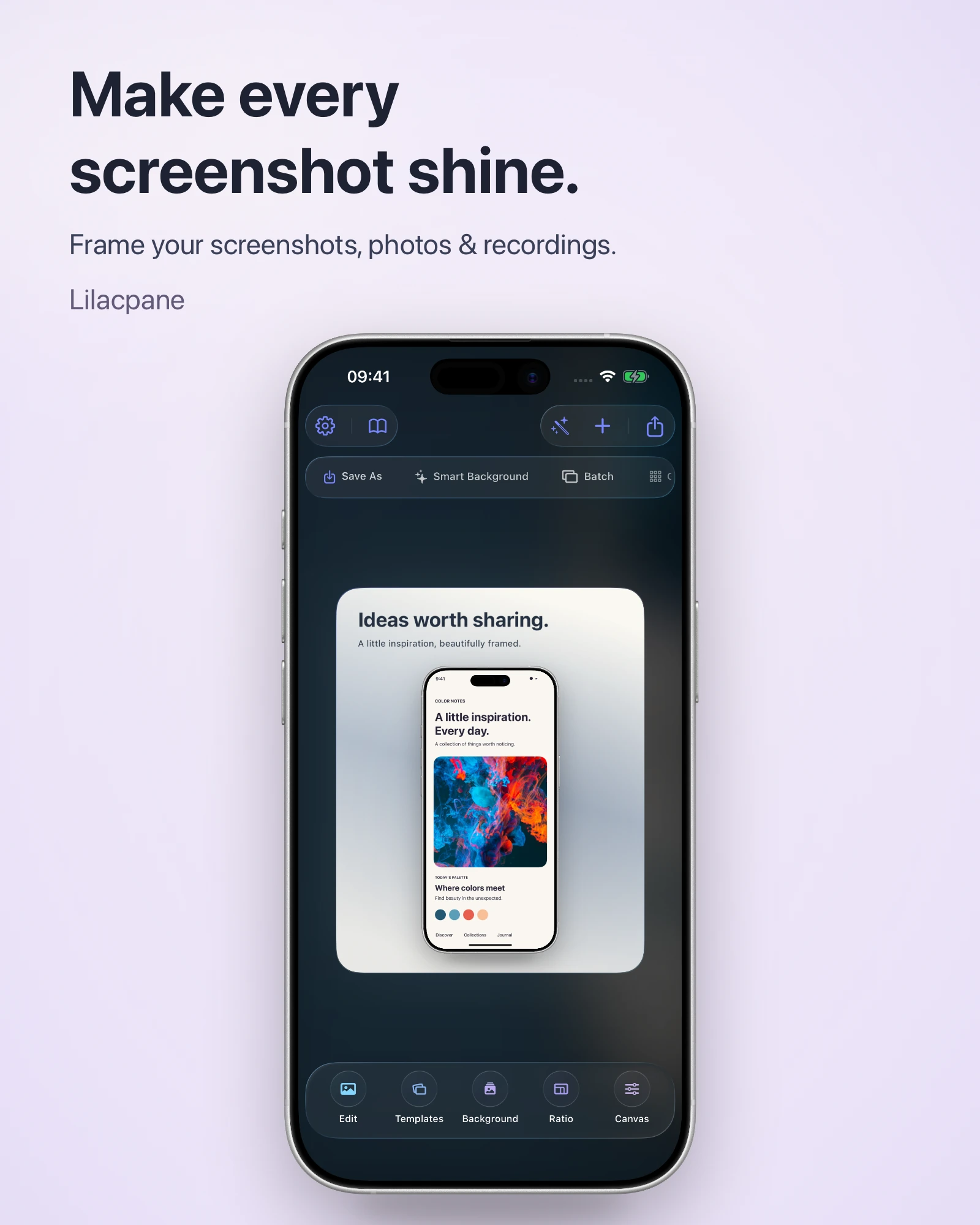
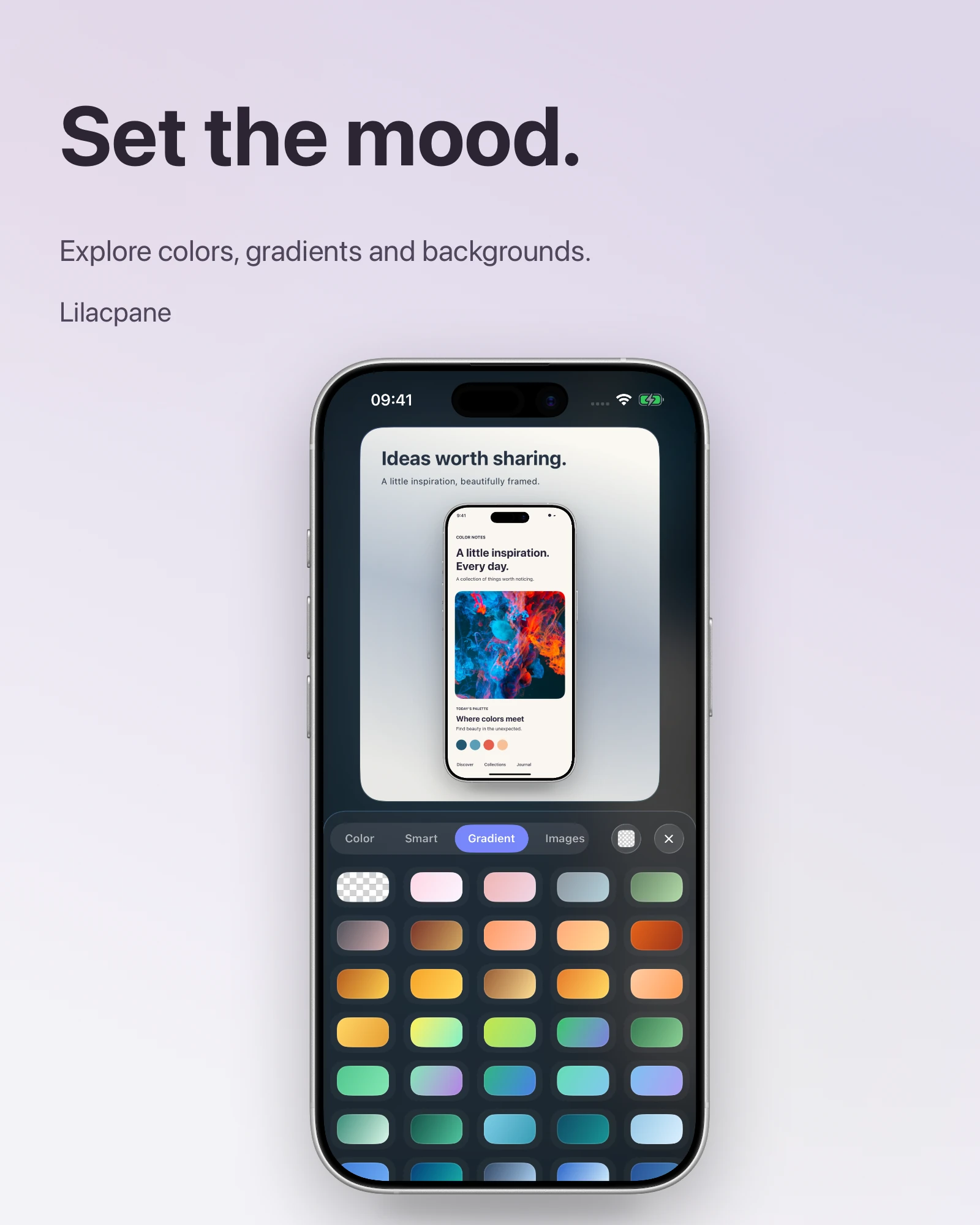
Choose a device frame, import an image or video, refine the background and text, then use the export options available in the current version.
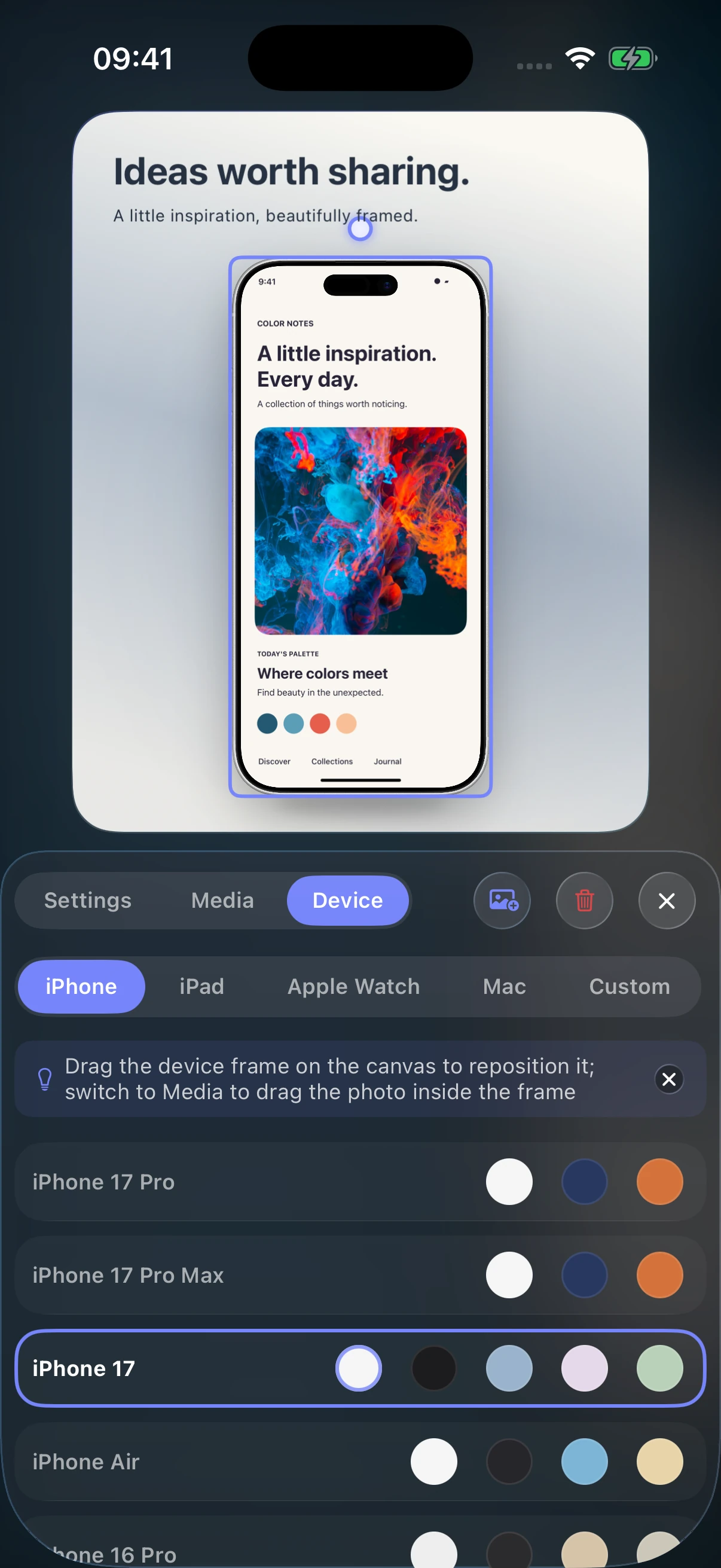
Device frames, image and video import, background settings, typography, and export tools come together on one editing canvas.
Browse iPhone, iPad, Mac, and Apple Watch frame categories and choose the finish that fits the asset. Availability follows the current app version.
Import screenshots, photos, recordings, or video and preview the result on the editing canvas.
Use solid, gradient, or image backgrounds to shape the visual mood with the options available in the current version.
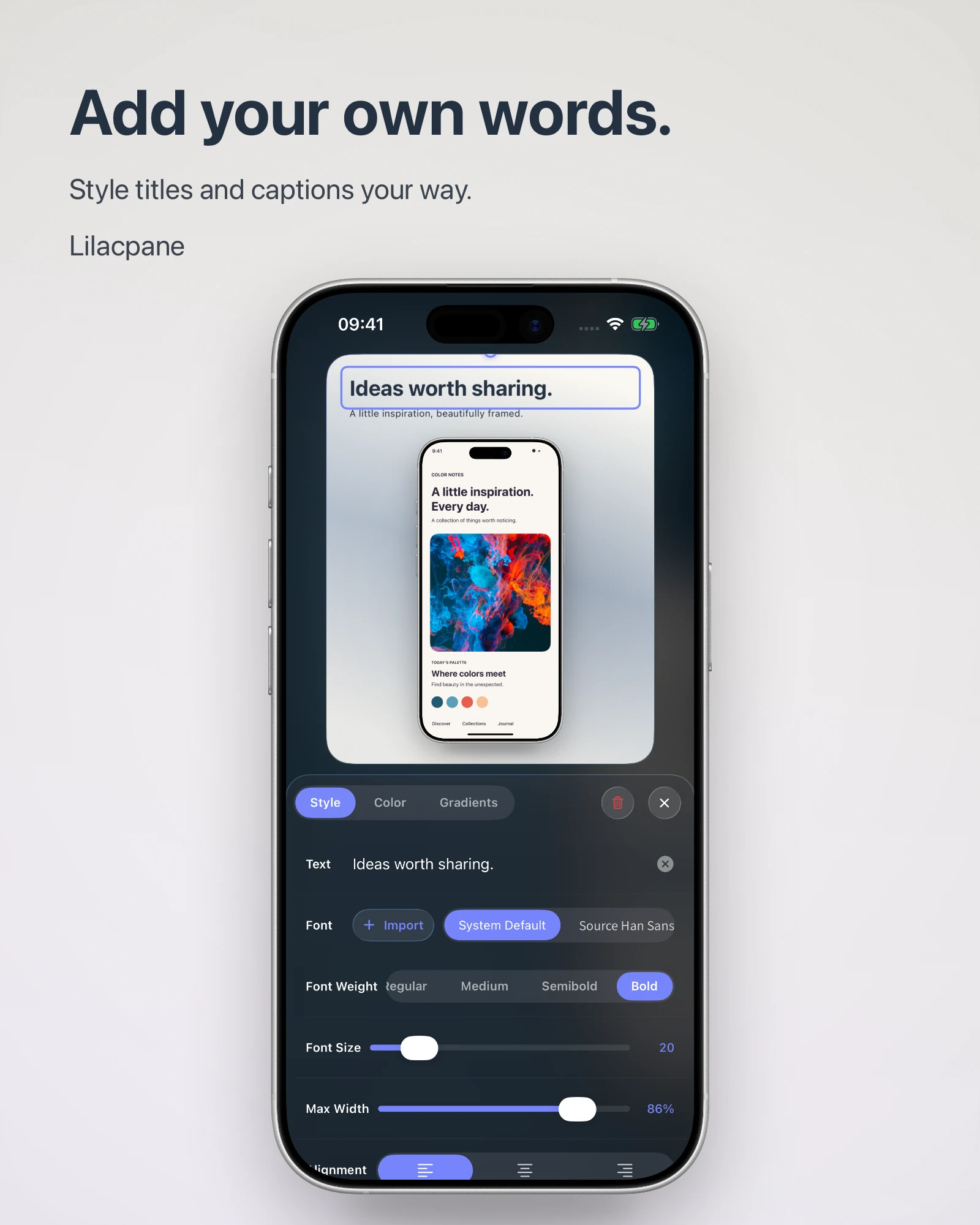
Add a headline, subtitle, or supporting text, then adjust the font, size, color, and position for clearer product communication.
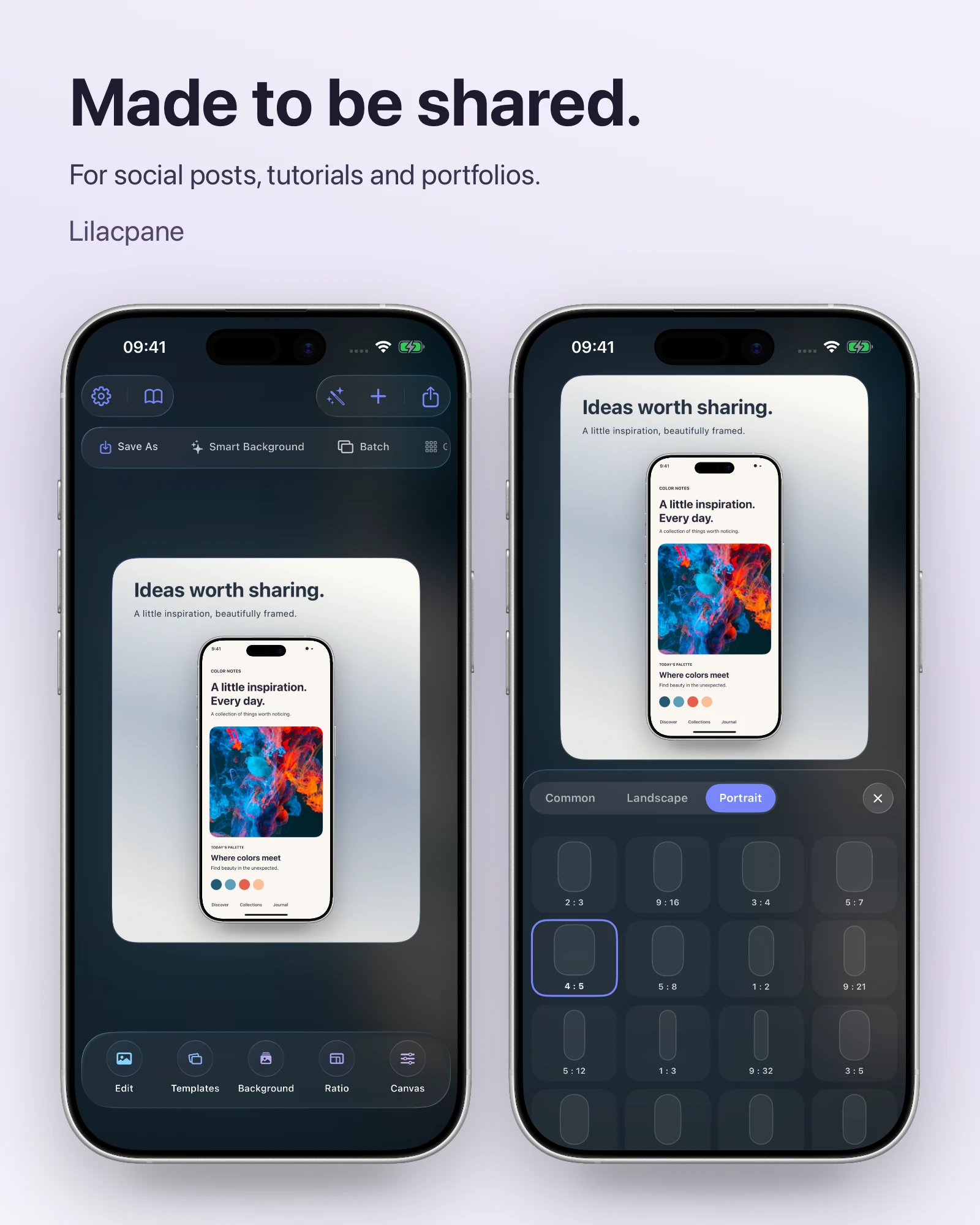
Organize assets individually or in batches and export with the formats, canvas options, and scales shown in the current version. Check the target platform requirements before publishing.
Explore templates, backgrounds, device frames and typography in a complete workflow. These visuals were exported by the app. Color Notes is fictional sample content.
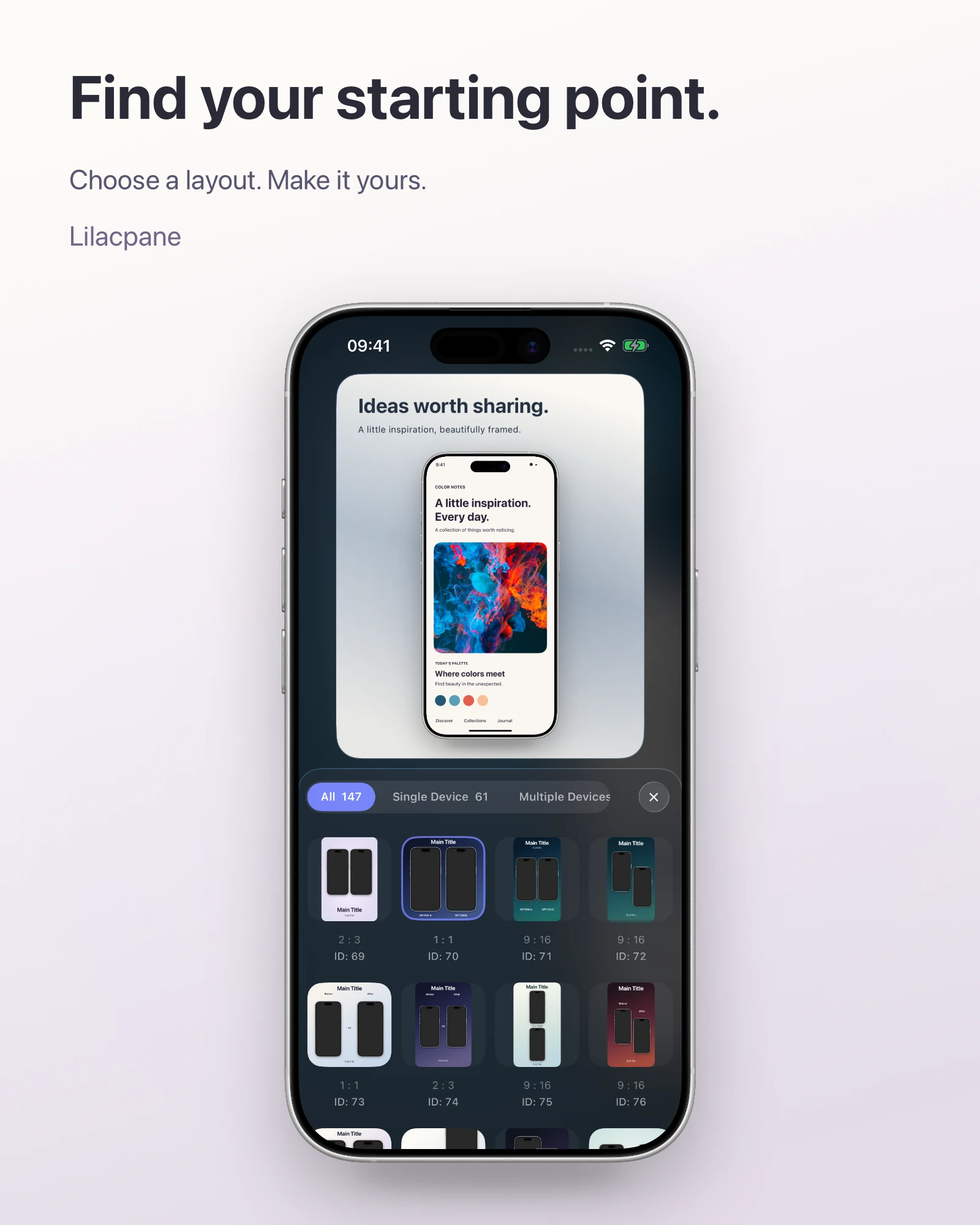
Practical workflows for launch images, screenshot design, device mockups and App Store screenshots.
Turn product screenshots into launch graphics, website visuals and social posts with a clear headline, background and device mockup in Lilacpane.
Screenshot designBeautify a screenshot with a background, readable text and balanced spacing. Learn how to avoid blurry exports and prepare product visuals in Lilacpane.
Device mockupsCreate phone and multi-device mockups from screenshots or screen recordings. Choose framing, composition and export checks for product presentations.
App Store screenshotsMake App Store screenshots from real app screens, consistent layouts and clear captions. Check dimensions, localized text and exported files before upload.
Learn about Lilacpane screenshot framing features, supported media, device frames, export options, and where to download.
Lilacpane adds device frames to screenshots, photos, or video and lets you set the background, text, and canvas presentation for App Store, social, and portfolio visuals.
You can import screenshots, photos, recordings, and video. The exact import methods and options depend on the current app version.
Lilacpane provides export tools. The exact formats, canvas options, and scales are shown in the current Export panel; check the latest platform requirements before submission.
Lilacpane is free to download. Free features and features that require an in-app purchase are shown in the current version.
The app provides Apple device frames across categories such as iPhone, iPad, Mac, and Apple Watch. Models, finishes, and availability follow the current version.
Import your app screenshots, choose a suitable device frame, set the background and headline, then adjust the canvas to the current App Store Connect requirements before exporting.
Browse the device categories and manually choose a frame that matches the asset orientation and the context in which it will be shown.
If the current Background and Export panels provide transparency and PNG, enable those options and export from the app. Always follow the options shown in the current version.
Requirements vary by platform and device category. Check the latest App Store Connect guidance first, then select a matching canvas option in Lilacpane.
Download Lilacpane for free to create device-framed screenshots, product visuals, and social assets on iPhone and iPad. Available features and in-app purchases follow the current app version.
Download on App StoreiPhone & iPad · Start framing for free · Pro in-app purchases