 Lilacpane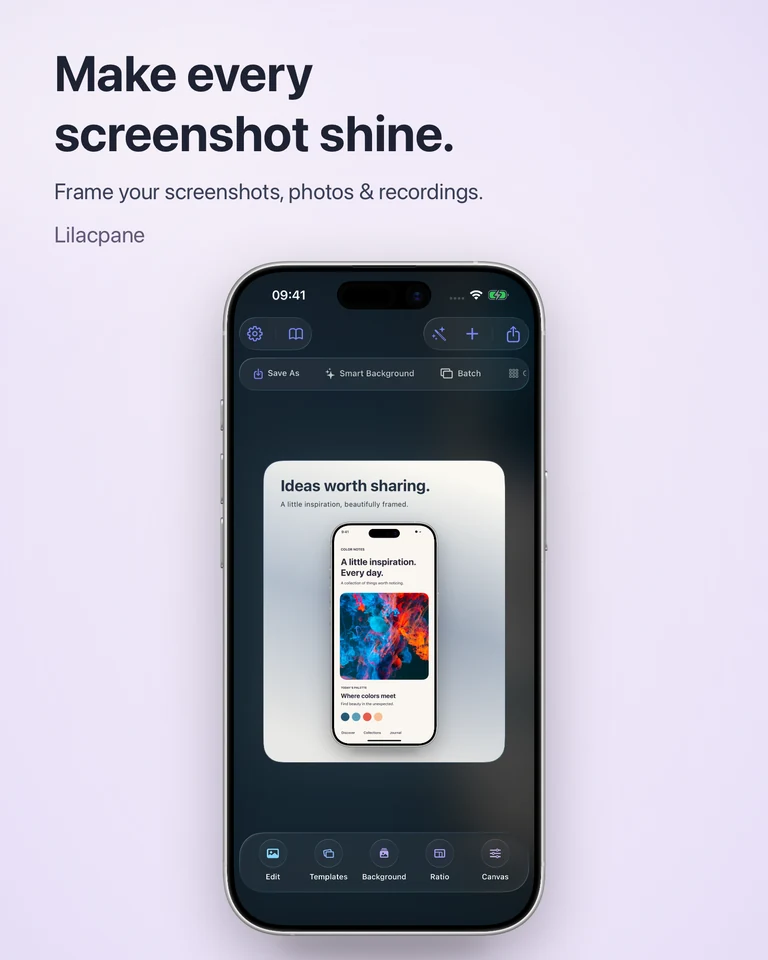
Build a message around a real screen
Choose one task, such as collecting ideas or reviewing a project. Capture the useful result rather than an empty starting screen. In Lilacpane, import the image, add your own headline and arrange the background and optional device frame. Let the interface provide evidence for the message.
Adapt the composition to its destination
For a website or landing page, leave room around the product so surrounding page text can introduce it. For a social media post, reduce secondary text and check the image at phone size. A square or portrait version usually needs a fresh arrangement; cropping a finished landscape design can cut off the important screen.
Make a coherent launch series
Plan three different images: the product’s main benefit, a specific workflow and its result. Keep the same typography, background family and margins. Change the screenshot and headline to add information rather than repeating the same visual. Reuse a composition manually and check each replacement.
Present work in a portfolio
A UI portfolio needs both context and detail. Use a device mockup for context, then include a larger screen view where the interface can be read. For multi-device work, give the main screen the most space and use the others to explain how the experience fits together. Export and inspect the final image at its intended display size.
Questions before you start
Can I make the graphics in this web page?
This page explains the workflow. Download Lilacpane from the App Store to import your material and edit a composition.
Will one image work on every channel?
Keep the message and visual style, but adjust the canvas and layout for each destination. Check text size and cropping before publishing.
Free to download. In-app purchases are available; check the app for current access and export options.