 Lilacpane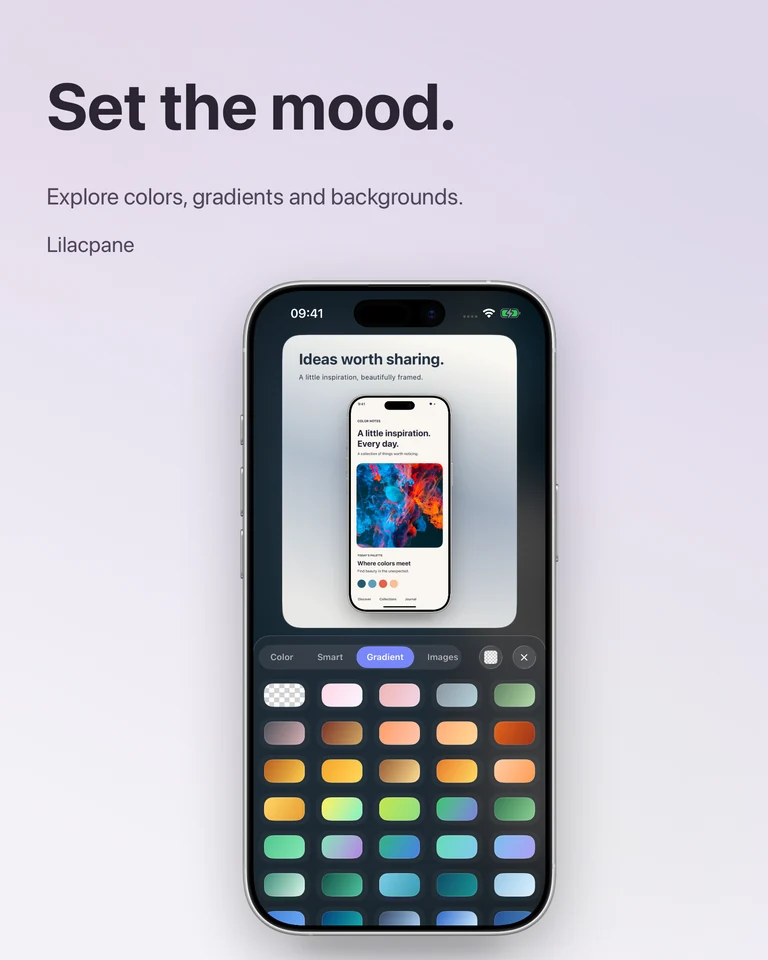
Start with enough detail
Use the original screenshot rather than an image saved from a compressed chat preview. Remove private content before importing it. Decide which interface detail must remain readable and make that area large enough on the canvas; a beautiful background cannot recover missing source pixels.
Add a background that supports the screen
In Lilacpane, import the screenshot and choose a solid, gradient or image background. Begin with a quiet color, then compare it with a more expressive option. Leave consistent padding around the content. If the screenshot itself is busy, a simpler background gives the eye somewhere to rest.
Add text with a clear hierarchy
Write a short headline that describes the result, with one supporting line only if it adds useful context. Adjust the text size, position and color in the editor. Keep text away from the device edge and check it at the small size where the image will actually appear.
Check the export, not just the canvas
Inspect the exported file at 100% and at its intended display size. If it looks blurry, compare the source resolution, the space the screenshot occupies and any compression applied after upload. Increasing export scale adds output pixels but does not recreate lost detail. For a transparent mockup, use the available transparent-background and PNG options and check the result on both light and dark surfaces.
Questions before you start
Can this restore a blurry screenshot?
This workflow improves presentation, not missing image detail. Start from a higher-quality capture when small text is already unreadable in the original.
Should I use a device frame every time?
Use a frame when the device context helps explain the product. A simple screenshot with a background may be clearer when the interface detail is the main point.
Free to download. In-app purchases are available; check the app for current access and export options.