 Lilacpane
Prepare your source
Use the original recording from Photos. Play it once to check orientation and make sure the first and last frames are suitable for sharing.
Download Lilacpane on the App Store · Free to download; some features require an in-app purchase.
The examples below show the English interface. Use the same controls in your selected language.
1. Add a frame that fits the recording
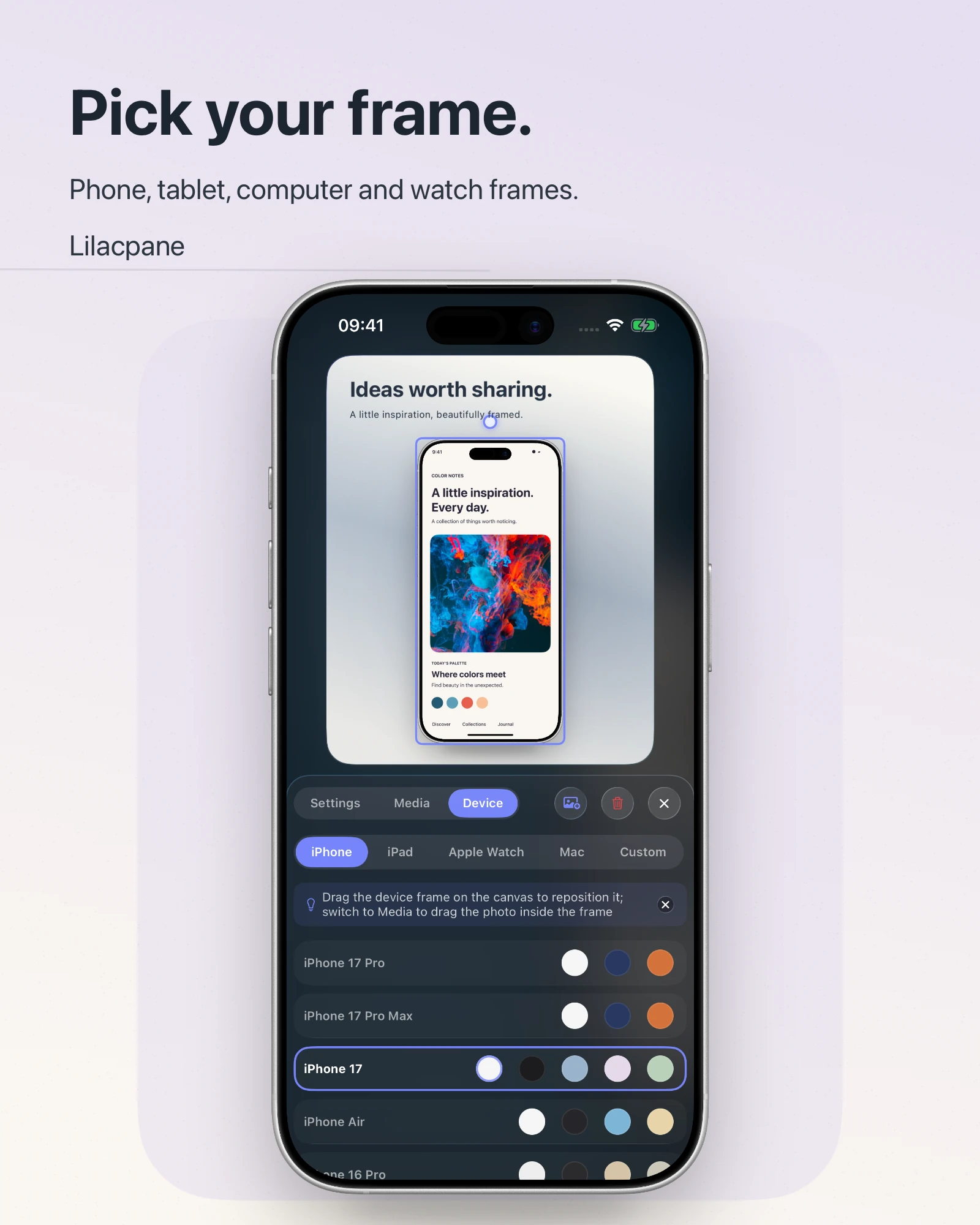
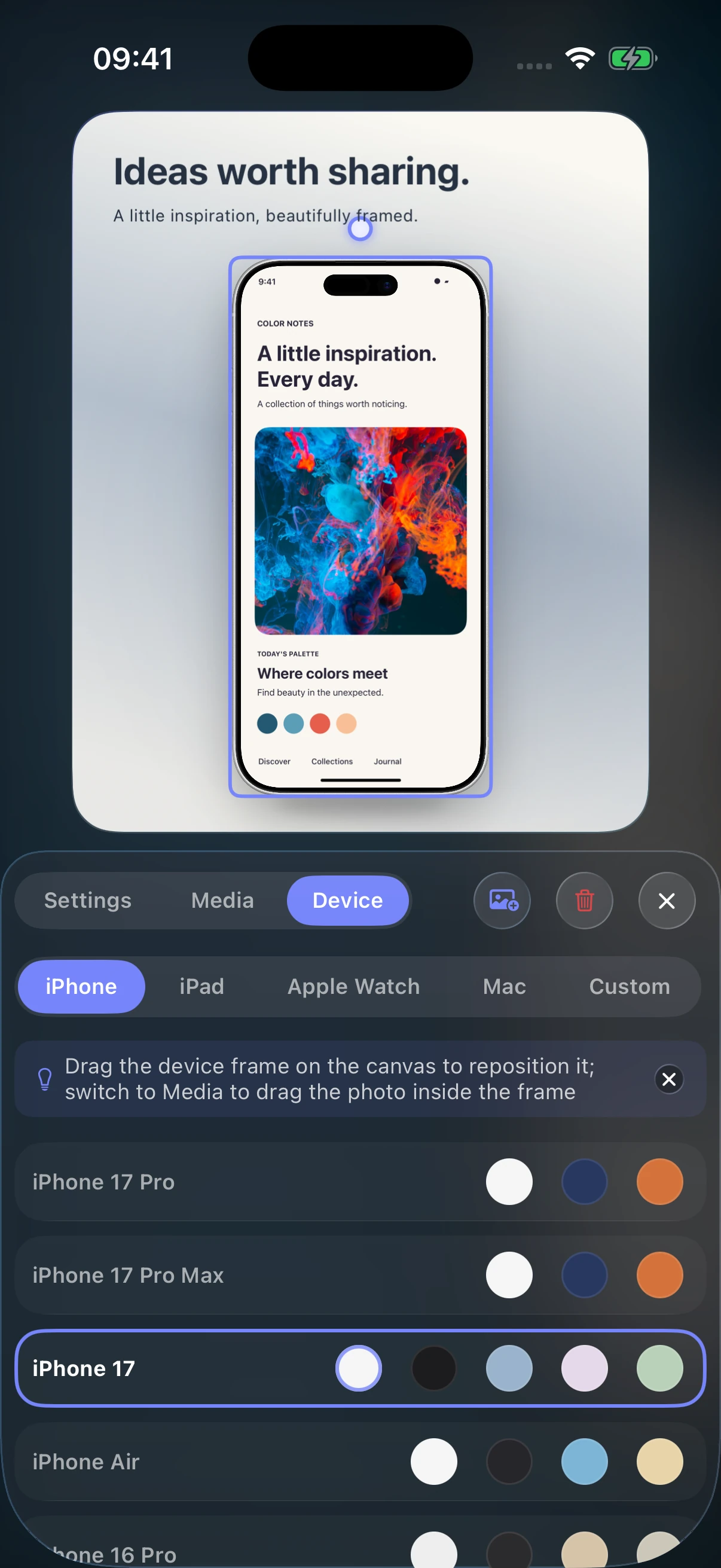
Tap + in the upper right and add a device frame. Select it and open Device to choose an iPhone or iPad appearance that fits the recording.
2. Import the original video
Once a frame is on the canvas, tap Add or Edit at the bottom and select the recording from Photos. To replace the source in a particular frame, select it and open Media.
Check important moments in the source recording, including navigation changes, pop-ups, and captions. Adjust the media position and size to keep those details visible.
3. Set the background and title
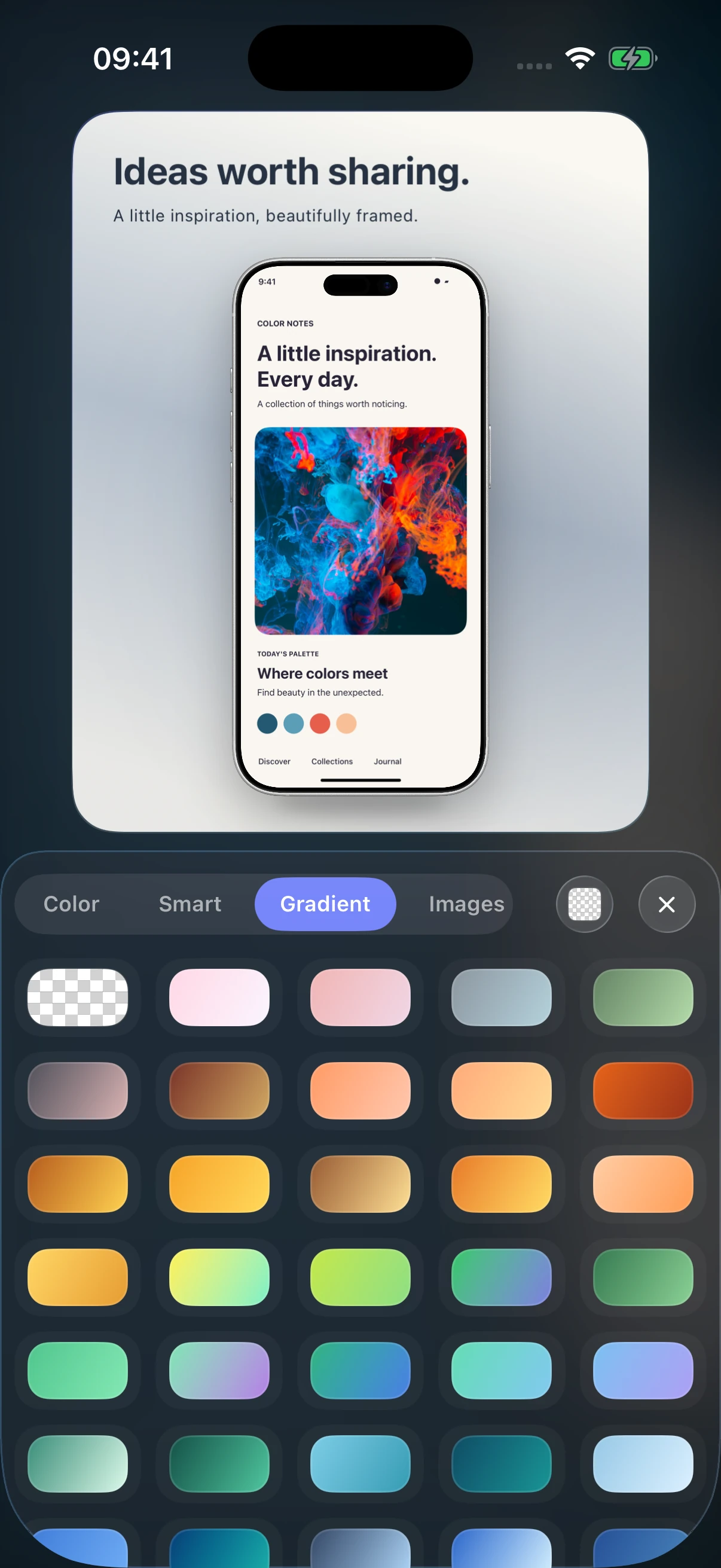
Open Background in the bottom toolbar. A solid color or simple gradient keeps attention on the recording. Add a title with + and place it outside the device frame.
4. Export the video and play it through
Use the export icon in the upper right and review the video export options. If the app presents a Pro purchase requirement, confirm the feature details before purchasing.
For an App Store preview, check Apple’s video requirements separately. A framed social-media demo is not automatically suitable for that destination.
Try a still screenshot first
Follow the screenshot tutorial using your own original screenshot
FAQ
Do I need to crop the recording first?
Start with the original recording. Preserve navigation and controls, and adjust the frame and composition around it.
Why is the video cropped at the bottom?
Check the source and frame proportions, and reduce excessive scaling of the media inside the frame.
Is video export free?
The app is free to download and includes in-app purchases. Review the video export options and any Pro requirement in the app.