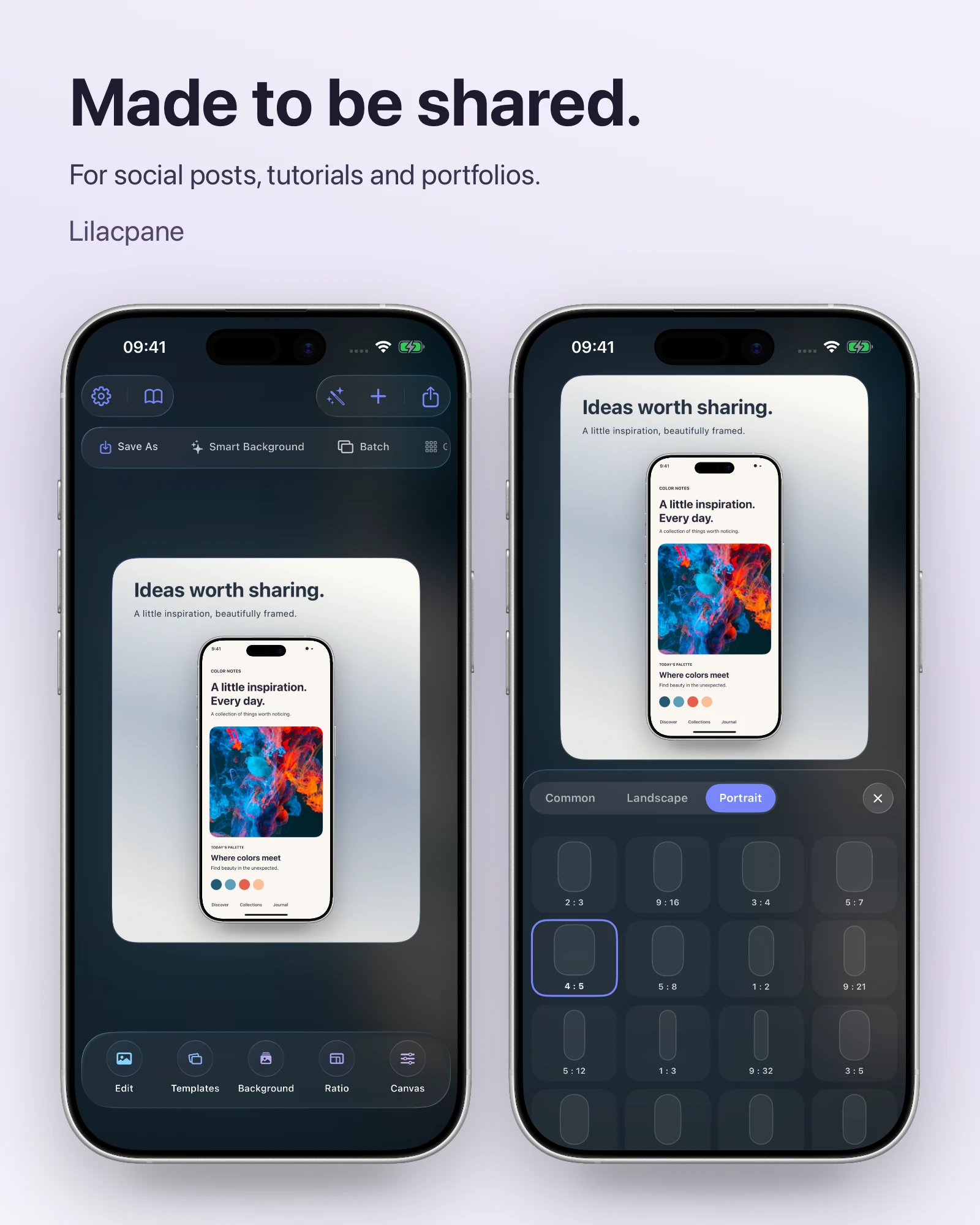
 Lilacpane
Common App Store screenshot dimensions
| Category | Accepted pixels |
|---|---|
| iPhone 6.9-inch | 1260 × 2736 / 1290 × 2796 / 1320 × 2868 |
| iPhone 6.5-inch | 1284 × 2778 / 1242 × 2688 |
| iPhone 6.3-inch | 1179 × 2556 / 1206 × 2622 |
| iPad 13-inch | 2064 × 2752 / 2048 × 2732 |
| Mac | 1280 × 800 / 1440 × 900 / 2560 × 1600 / 2880 × 1800 |
All values are pixels. Mac values are landscape only. For iPhone and iPad, swap width and height for the corresponding landscape size. These are submission categories, which are different from physical screen measurements.
Source: Apple’s screenshot specifications · 2026-09-13.
Which sets do you need?
An app that runs on iPad needs the 13-inch iPad category. A Mac app needs Mac screenshots. For iPhone, Apple lists the 6.5-inch set as required when the app runs on iPhone and a 6.9-inch set has not been provided.
Apple can scale supported sets into other display categories. Use separate captures whenever the actual interface differs. A phone interface stretched across an iPad canvas does not document the iPad experience.
Worked examples: pixels versus ratio
| Image size | Exact ratio | Dimension category |
|---|---|---|
| 1206 × 2622 | 201:437 | iPhone 6.3-inch ✓ / 6.9-inch ✕ |
| 1320 × 2868 | 110:239 | iPhone 6.9-inch ✓ |
| 1600 × 2000 | 4:5 | Poster / 海报 |
| 2064 × 2752 | 3:4 | iPad 13-inch ✓ |
Our real App screenshot example is 1206 × 2622, while the App-made website poster is 1600 × 2000. They serve different destinations. Inspect both with the example buttons in the checker; neither a device frame nor a bigger export multiplier automatically chooses an App Store category.
Build and check the final export
- Capture the real app interface on the platform you are presenting. Keep the original file so that messaging-app compression does not change it.
- Choose your destination and canvas before arranging the screenshot, background and title. Keep important interface content readable.
- In Lilacpane, import the screenshot and adjust the frame, background and text. Review the canvas and export settings available in your version.
- Export, reopen the actual file in the checker, and compare its pixels with the target category. If needed, revise the canvas or export settings and check again.
- Review content and transparency separately in your export workflow, then upload to the appropriate category in App Store Connect.
FAQ
Does 16:10 guarantee a valid Mac screenshot?
No. Choose one of the four listed pixel pairs. The checker compares both width and height, including orientation.
Is 2048 × 2732 interchangeable with 2064 × 2752?
Both are listed for the 13-inch iPad category, but they have different exact ratios. Compose for the selected canvas instead of assuming they are identical.
Does the checker guarantee App Review approval?
No. It checks pixel dimensions. It does not evaluate screenshot content, transparency, metadata or App Review compliance.